 Cloud Ops Chronicles
Securely Manage Secrets with HashiCorp Vault on Cloud Run: A GCP Guide
Introduction
HashiCorp Vault is a powerful tool for managing application secrets, providing a centralized platform to store, control, and secure sensitive information. It offers a comprehensive suite of features to safeguard your critical secrets, including:
- Secret Storage and Management: Vault securely stores a wide range of secrets, including passwords, API keys, certificates, and authentication tokens.
- Granular Access Control: Implement fine-grained access controls to manage who can access specific secrets, ensuring that only authorized users and applications have access.
- Robust Encryption: Vault encrypts secrets using strong encryption algorithms and utilizes system-managed encryption keys to guarantee data security.
- Auditing and Logging: Vault maintains a comprehensive audit log of all secret access and modifications, enabling you to monitor and audit activities effectively.
Vault: A Pillar for Enhanced Security and Control
Vault has become an indispensable tool for organizations seeking to strengthen their security posture and protect sensitive data. Its centralized approach to secrets management simplifies the process of securing and controlling access to critical information, mitigating the risk of unauthorized access and data breaches.
Simplifying Vault Deployment and Management with GCP
While Vault offers immense value, deploying and managing a Vault instance can be a complex and time-consuming endeavor. This is where GCP PaaS simplify the process.
By leveraging the power of Google Cloud Platform (GCP), you can further enhance the security and scalability of your Vault deployment. GCP’s robust cloud infrastructure and suite of security services provide an ideal foundation for hosting and managing Vault:
- Cloud Run is a fully managed serverless platform for deploying and running containerized applications. It provides an ideal environment for hosting Vault.
- Google Cloud Storage (GCS): Utilize GCS as a secure and scalable backend storage solution for Vault data. GCS’s durability and high availability ensure that your secrets remain protected and accessible.
- Cloud Key Management Service (KMS): Employ KMS to manage and control cryptographic keys used for encrypting Vault data. KMS’s centralized key management capabilities safeguard your encryption keys and simplify key rotation processes.
Leveraging Cloud Run for a Secure and Scalable Vault Solution
By combining the strengths of HashiCorp Vault and Cloud Run, organizations can achieve a powerful and scalable solution for managing application secrets. Cloud Run eliminates the complexities of infrastructure management, allowing you to focus on the core functionalities of Vault.
With Cloud Run, you can:
- Deploy Vault quickly and easily: Utilize Cloud Run’s simplified deployment process to get Vault up and running in no time.
- Scale Vault automatically: Cloud Run automatically scales Vault instances based on demand, ensuring it can handle fluctuating workloads efficiently.
- Optimize costs: Benefit from Cloud Run’s pay-per-use model, paying only for the resources consumed by Vault.
A Comprehensive Solution for Secure Secrets Management
By combining the strengths of HashiCorp Vault, GCS, KMS, and Cloud Run on GCP, organizations can achieve a comprehensive and secure solution for managing application secrets:
- Centralized Secret Storage: Vault provides a centralized repository for storing and managing all types of secrets.
- Robust Encryption: KMS ensures that secrets are encrypted with strong encryption keys and stored securely in GCS.
- Fine-grained Access Control: Vault enforces granular access controls to restrict access to secrets based on user identities and application permissions.
Embrace a Secure and Streamlined Approach to Secrets Management
By adopting HashiCorp Vault on Cloud Run, you can streamline secrets management, enhance application security, and gain peace of mind knowing that your sensitive data is protected. Cloud Run’s serverless architecture and pay-per-use model further simplify the process, making it an ideal choice for organizations seeking a cost-effective and scalable solution.
Architecture
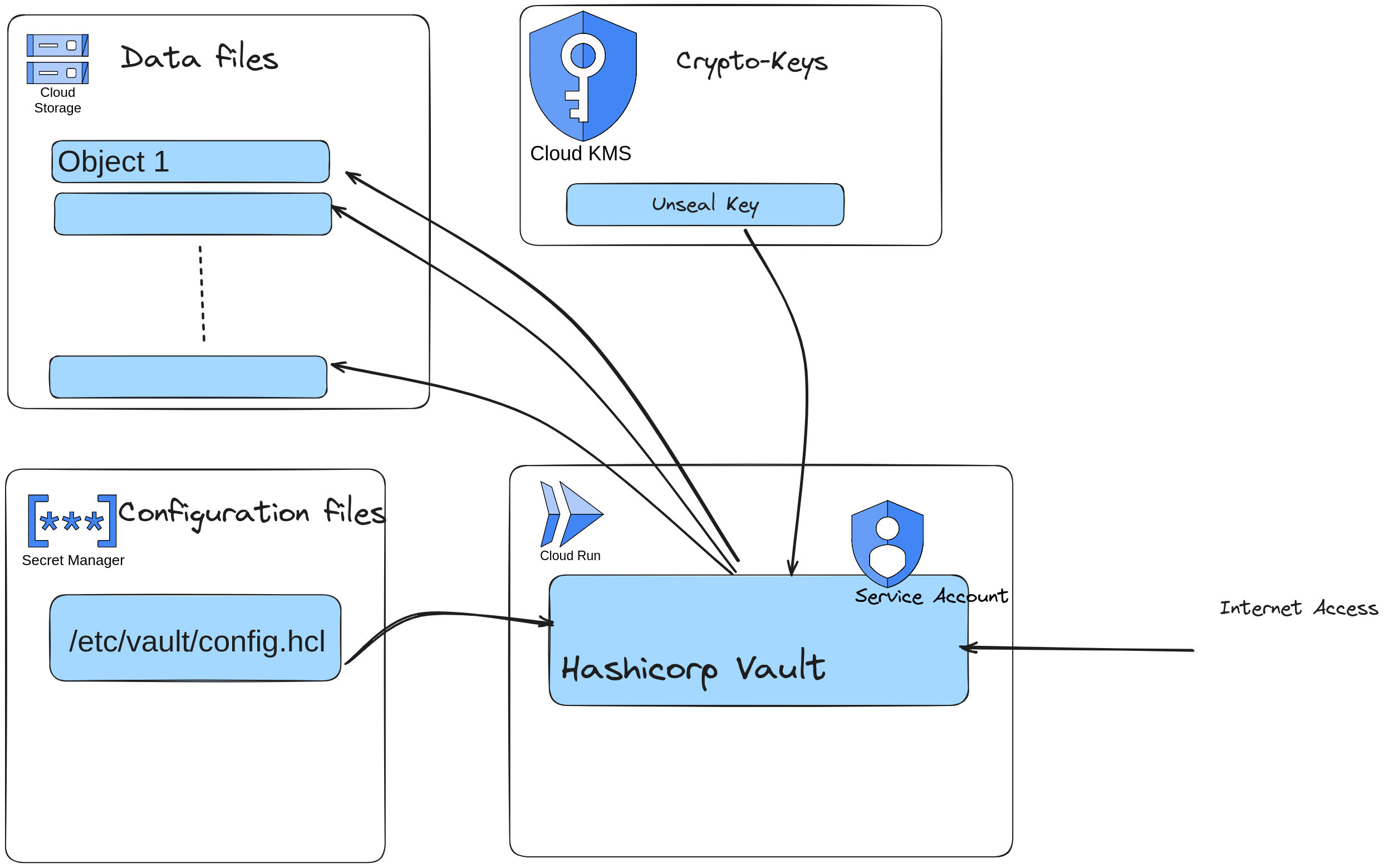
Prerequisites
To embark on this journey of securing your application secrets with HashiCorp Vault on Cloud Run, ensure you have the following prerequisites in place:
- Google Cloud Platform (GCP) Account: A GCP account is essential to access and utilize GCP’s services, including Cloud Run, GCS, and KMS.
- GCP Project: A GCP project serves as the container for your GCP resources, including the Vault deployment. Ensure you have a designated project for this purpose.
- gcloud Command-Line Tool: The gcloud command-line tool is a powerful interface for interacting with GCP services from your local machine. Install and configure gcloud to proceed.
- vault Command-Line Tool: The vault command-line tool is the primary interface for interacting with HashiCorp Vault. Install and configure vault to manage your Vault instance.
Step 1: Create a Service Account
To enable Vault to interact with GCP APIs, we’ll create a service account. A service account is a special type of account used by applications or compute workloads, rather than a person. It allows applications to perform authorized actions on GCP resources, such as creating or deleting instances, or accessing Cloud Storage buckets.
# service_account.tf
resource "google_service_account" "vault_sa" {
  account_id   = "vault-${var.environment}-kpabl-info-sa"
}
Step 2: Configure KMS (Key Management Service)
In this step, we’ll set up a Key Management Service (KMS) to encrypt our secrets. KMS is a crucial component for ensuring the security of your secrets. It provides a centralized and secure way to manage cryptographic keys. Vault will encrypt and decrypting secrets and confidential information before it’s stored in GCS.
Also we need to create a : * KMS key ring * KMS cryptographic key
Refer to the official documentation for detailed instructions.
# kms.tf

# Create a KMS
resource "google_kms_crypto_key" "vault_kms" {
  crypto_key_id = "vault-${var.environment}-kpabl-info-key"
  purpose       = "ENCRYPT_DECRYPT"
  version_template {
    algorithm = "GOOGLE_SYMMETRIC_ENCRYPTION"
    protection_level = "SOFTWARE"
  }
  # If we lose this key, then we won't be able to read our data
  lifecycle {
    prevent_destroy = true
  }
}

# Create a Keyring
resource "google_kms_key_ring" "vault_keyring" {
  location = "europe-west1"
  project  = var.project
  name     = "vault-${var.environment}-kpabl-info-keyring"
}

# Associate the Keyring with a KMS
resource "google_kms_crypto_key" "vault_kms_keyring" {
  crypto_key_id = google_kms_crypto_key.vault_kms.crypto_key_id
  key_ring_id  = google_kms_key_ring.vault_keyring.key_ring_id
}
Step 3: Configure a Storage Backend
In this step, we’ll configure a storage backend using Google Cloud Storage (GCS) to securely store your Vault secrets. GCS provides a scalable, durable, and highly available object storage solution, making it an ideal choice for storing sensitive information like secrets.
# backend.tf

# Create a Bucket
resource "google_storage_bucket" "vault_bucket" {
  name     = "vault-${var.environment}-kpabl-info-bucket"
  location = "europe-west1"
  force_destroy = true
  project  = var.project
  storage_class = "STANDARD"
}

# Give the service account access to the bucket
resource "google_storage_bucket_iam_member" "vault_bucket_sa" {
  bucket = google_storage_bucket.vault_bucket.name
  role   = "roles/storage.admin"
  member = "serviceAccount:${google_service_account.vault_sa.email}"
}
Once you’ve created a GCS bucket, we’ll need to configure Vault to use it as the storage backend. This will involve setting up the necessary Vault configuration and policies to enable secure storage of secrets in your GCS bucket.
Step 4: Generate a Configuration File for the Container
With all the essential components in place, we’ll now generate a configuration file that will guide the containerized Vault application. This file will define the parameters and settings required for Vault to operate effectively within our GCP environment.
# vault-server.hcl

default_max_request_duration = "90s"
disable_clustering           = false
disable_mlock                = true
ui                           = true

log_file = "/dev/stdout"

listener "tcp" {
  address = "[::]:8200"
  cluster_address = "[::]:8201"
  tls_disable = "true"
}

seal "gcpckms" {
  key_ring   = "${key_ring}"
  crypto_key = "${crypto_key}"
  region     = "${region}"
}

storage "gcs" {
  ha_enabled = "true"
}
To further enhance security, we’ll leverage Google Cloud Secret Manager (SM) to store and manage the sensitive Vault configuration file. SM provides a centralized and secure vault for storing sensitive information like configuration data, ensuring that your Vault configuration remains protected and accessible only to authorized entities.
# config.tf

# Generate random string for each ressource name
resource "random_id" "config" {
  byte_length = 8
}

# Secret to store config file
resource "google_secret_manager_secret" "vault_config" {
  secret_id = "${var.environment}-vault-config-${random_id.vault-config.hex}"

  labels = {
    app         = "vault"
    environment = var.environment
  }

  replication {
    user_managed {
      replicas {
        location = "europe-west1"
      }
    }
  }
}

# Inject config into our secret and complete config-file with KMS values
resource "google_secret_manager_secret_version" "vault_config" {
  secret = google_secret_manager_secret.vault_config.id

  secret_data = templatefile("${path.module}/vault-server.hcl", {
    key_ring   = google_kms_key_ring.vault.name
    crypto_key = google_kms_crypto_key.vault-key.name
    region     = google_kms_key_ring.vault.location
  })
}

# Atach policy to our secret
data "google_iam_policy" "vault_config" {
  binding {
    role = "roles/secretmanager.secretAccessor"
    members = [
      "serviceAccount:${google_service_account.vault_sa.email}",
    ]
  }
}
resource "google_secret_manager_secret_iam_policy" "vault_config" {
  project     = var.project
  secret_id   = google_secret_manager_secret.vault_config.id
  policy_data = data.google_iam_policy.vault_config.policy_data
}
Step 5: Configure Container Deployment
Now that we have all the components in place, it’s time to deploy the containerized Vault application using Cloud Run. However, we’ll make some adjustments to ensure Vault runs in a secure mode rather than the default “dev” mode. By default, the official Vault Docker image runs in “dev” mode, which is not suitable for production environments. To operate Vault in a secure manner, we need to override the default entrypoint.
module "vault_service" {
  source         = "../modules/http-container"
  project        = var.project
  fqdn           = var.environment != "prod" ? "vault-${var.environment}.kapable.info" : "vault.kapable.info"
  docker_image   = "hashicorp/vault"
  allways_on     = false
  container_port = 8200
  cpus           = 2
  memory         = 2000
  command        = ["/bin/vault"]
  args           = ["server", "-config", "/etc/vault/config.hcl"]
  container_env = {
    SKIP_SETCAP           = 1
    GOOGLE_PROJECT        = var.project
    GOOGLE_STORAGE_BUCKET = google_storage_bucket.buckets["vault"].name
    VAULT_LOG_LEVEL       = "info"
    SKIP_CHOWN            = 1
    VAULT_ADDR            = "http://127.0.0.1"
    VAULT_API_ADDR        = "http://127.0.0.1"
 }
  volumes = {
    config = {
      secret_id      = google_secret_manager_secret.vault_config.id
      secret_version = google_secret_manager_secret_version.vault_config.version
      secret_file    = "config.hcl"
      mount_path     = "/etc/vault"
    }
   }
  depends_on = [google_kms_key_ring_iam_policy.seal]
}
Step 6: Initialize Vault
With Vault successfully deployed and configured, it’s time to initialize it to enable secret management capabilities. This involves creating a storage directory, downloading the Vault binary, and executing the initialization command.
- Create a Storage Directory: Create a directory to store your Vault configuration files. For example, create a directory named vault-config in your home directory:
- Initialize Vault: Navigate to the directory containing the Vault binary and execute the initialization command:
- Follow On-screen Instructions: The initialization process will generate five key shares and a root token. Carefully record and store these key shares and the root token in a secure location. You will need these to unseal and recover Vault if necessary.
vault operator init
Conclusion
This comprehensive guide has walked you through the process of deploying and configuring Hashicorp Vault on Cloud Run, leveraging a Cloud Storage (GCS) storage backend and Cloud Key Management Service (KMS) encryption on GCP. By following these steps, you have successfully established a secure and scalable solution for managing your secrets in the GCP environment.
Key Benefits of this Approach:
- Simplicity: Streamlined deployment and management through Cloud Run and Terraform.
- Scalability: Automatic scaling based on demand, ensuring your infrastructure can handle fluctuating workloads.
- Security: Robust security measures, including encryption of secrets with KMS and container isolation, safeguard your sensitive data.
- Cost-Effectiveness: Pay-as-you-go model optimizes resource utilization and minimizes unnecessary expenses.
Essential Considerations:
- Adhere to Security Guidelines: Strictly follow security best practices to protect your secrets from unauthorized access and potential breaches.
- Implement IAM Policies: Enforce stringent IAM policies to restrict access to your GCP resources, ensuring only authorized users can manage your infrastructure.
- Monitor Resource Usage: Continuously monitor resource utilization and adjust your infrastructure configuration as needed to meet evolving demands.
By hosting Hashicorp Vault on Cloud Run with a GCS storage backend and KMS encryption on GCP, you have gained a robust, scalable, and secure solution for managing your application secrets. This approach offers a streamlined deployment process, cost-effective operation, and enhanced security, making it an ideal choice for organizations seeking efficient and reliable secret management in the cloud.
Trust in GCP’s KMS Service and Confidentiality:
It is important to note that this model relies on trust in GCP’s KMS service and its commitment to confidentiality. By choosing to encrypt your secrets with KMS, you are entrusting GCP with the protection of your sensitive data. Therefore, it is crucial to carefully evaluate GCP’s security practices and ensure that they align with your organization’s risk tolerance and compliance requirements.
This model is suitable for organizations that have a high level of trust in GCP’s security practices and are comfortable with entrusting their secrets to a third-party service.